 Posted by
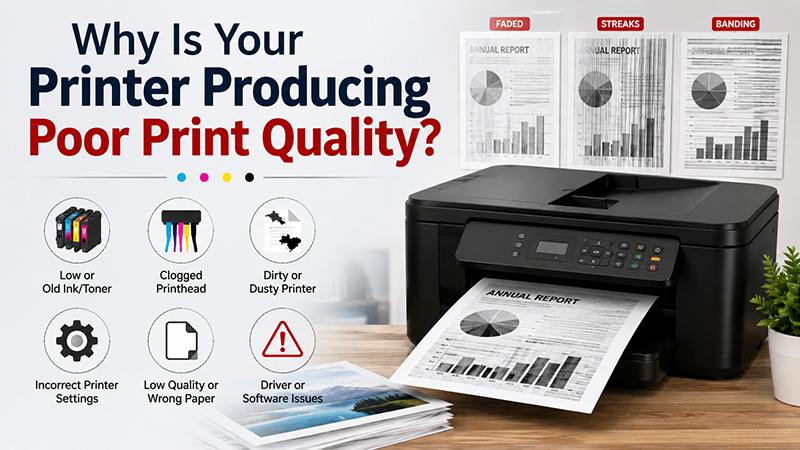
 Nothing is more frustrating than sending an important document to print only to find faded text, blurry images, streaks, or uneven colors on the page. Poor print quality not only wastes paper and ink but also affects productivity and creates an unprofessional impression for businesses.
Whether you use an inkjet or laser printer, print quality problems are often caused by maintenance issues, worn components, incorrect settings, or low-quality consumables. The good news is that most of these problems can be identified and resolved quickly.
In this guide, we’ll explore the most common printer print quality issues, their causes, and the best ways to restore crisp, professional-looking prints.
Common Signs of Poor Print Quality
Before troubleshooting, identify the symptoms your printer is showing.
Some of the most common printer print quality issues include:
- Faded or light printing
- Blurry text or graphics
- Streaks on printed pages
- Smudged ink or toner
- Missing lines or gaps
- Uneven color distribution
- Ghost images on pages
- Horizontal or vertical lines
- Patchy or inconsistent prints
Recognizing the symptom makes it easier to find the correct solution.
1. Low Ink or Toner Levels
One of the most common reasons for printer printing faded documents is low ink or toner.
When cartridges are nearly empty, printed text and graphics become lighter and inconsistent.
Solution
- Check ink or toner levels.
- Replace cartridges before they become completely empty.
- Use genuine cartridges whenever possible.
- Avoid continuously printing with low toner.
Using high-quality consumables significantly improves printer print quality.
2. Dirty Print Heads
For inkjet printers, clogged print heads are a leading cause of poor printing.
Dried ink blocks the nozzles, resulting in:
- Missing colors
- White lines
- Blurry images
- Uneven printing
Solution
Perform a printer head cleaning cycle using your printer software.
If the problem persists:
- Run a deep cleaning cycle.
- Print a nozzle check pattern.
- Clean the print head manually if recommended by the manufacturer.
Regular printer cleaning prevents recurring print quality issues.
3. Worn or Damaged Toner Cartridge
Laser printers rely on toner cartridges and drums to produce sharp prints.
A damaged cartridge may cause:
- Smudges
- Grey background
- Toner spots
- Uneven printing
Solution
Inspect the toner cartridge for:
- Leaks
- Damage
- Expired toner
- Incorrect installation
Replacing a faulty toner cartridge often restores excellent print quality.
4. Dirty Printer Rollers
Dust, paper fibers, and ink residue build up on the rollers over time.
Dirty rollers may result in:
- Paper marks
- Smudged print issues
- Uneven feeding
- Misaligned pages
Solution
Perform regular printer roller cleaning using a lint-free cloth and approved cleaning solution.
Routine maintenance extends printer life and improves output consistency.
5. Incorrect Print Settings
Sometimes the printer itself isn’t the problem.
Low-quality settings selected in the print dialog can reduce output quality.
Common mistakes include:
- Draft mode enabled
- Low DPI settings
- Incorrect paper type selected
- Economy printing mode
Solution
Always verify:
- Print Quality: High
- Correct Paper Type
- Appropriate Resolution
- Color Settings
These adjustments can dramatically improve printer print quality.
6. Printer Alignment Issues
If text appears blurry or colors don’t line up correctly, the printer may require alignment.
Misalignment commonly causes:
- Double images
- Blurry edges
- Color shifting
Solution
Run the built-in printer alignment utility.
Most modern printers provide automatic alignment through their maintenance menu.
7. Worn Imaging Drum
In laser printers, the imaging drum transfers toner onto the paper.
As it wears out, you’ll notice:
- Repeating marks
- Vertical streaks on print
- Faded areas
- Ghosting in laser printer output
Solution
Inspect the drum unit.
Replace it if it has reached the manufacturer’s recommended life.
A healthy drum ensures sharp and consistent printing.
8. Low-Quality Paper
Many users overlook paper quality.
Poor paper absorbs ink unevenly, causing:
- Feathering
- Ink bleeding
- Smudges
- Blurry text
Solution
Choose paper designed specifically for:
- Inkjet printers
- Laser printers
- Photo printing
- Business documents
Quality paper contributes significantly to professional-looking prints.
9. Outdated Printer Drivers
Printer software controls how your printer communicates with your computer.
Outdated drivers can create:
- Color inconsistencies
- Formatting issues
- Print quality degradation
Solution
Update your printer drivers regularly through the manufacturer’s official website.
Driver updates often include improvements for both performance and print quality.
10. Lack of Regular Printer Maintenance
Like any machine, printers require routine servicing.
Ignoring maintenance eventually leads to recurring common printer problems.
A simple maintenance schedule should include:
- Cleaning print heads
- Cleaning rollers
- Checking cartridges
- Updating firmware
- Removing paper dust
- Performing alignment tests
Regular office printer maintenance reduces downtime and improves reliability.
Quick Troubleshooting Checklist
If your printer isn’t producing clear prints, check the following:
✔ Replace low ink or toner cartridges
✔ Clean the print heads
✔ Perform printer alignment
✔ Clean the printer rollers
✔ Use high-quality paper
✔ Update printer drivers
✔ Replace worn drum units
✔ Check print quality settings
✔ Perform regular printer maintenance
Following this checklist solves the majority of printer troubleshooting cases.
Preventing Future Print Quality Problems
Prevention is always more cost-effective than repair.
Here are a few best practices:
- Print regularly to prevent ink from drying.
- Store paper in a dry environment.
- Use genuine ink and toner cartridges.
- Clean your printer monthly.
- Avoid touching the imaging drum.
- Keep firmware updated.
- Schedule periodic professional servicing for high-volume office printers.
These simple habits help maintain consistent performance and extend your printer’s lifespan.
Final Thoughts
Experiencing poor print quality doesn’t necessarily mean your printer needs replacing. In many cases, the issue stems from low ink or toner, clogged print heads, dirty rollers, worn components, or incorrect print settings.
By following a consistent maintenance routine and addressing problems early, you can eliminate most printer print quality issues, improve reliability, and ensure every document looks sharp and professional. Whether you’re using an inkjet or laser printer, regular care and timely replacement of consumables will keep your printer operating at its best.
FAQs
Why is my printer printing faded?
Low ink or toner levels, clogged print heads, or draft print settings are the most common causes of faded printing.
How do I fix blurry print from my printer?
Check printer alignment, clean the print heads, use the correct paper, and select high-quality print settings.
What causes streaks on printed pages?
Dirty print heads, damaged toner cartridges, worn drums, or contaminated rollers can all cause streaks.
How often should I clean my printer?
For regular office use, cleaning your printer once a month helps maintain consistent print quality and reduces maintenance issues.
Does paper quality affect print quality?
Yes. Using high-quality paper designed for your printer type improves sharpness, color accuracy, and overall print performance.