 Posted by
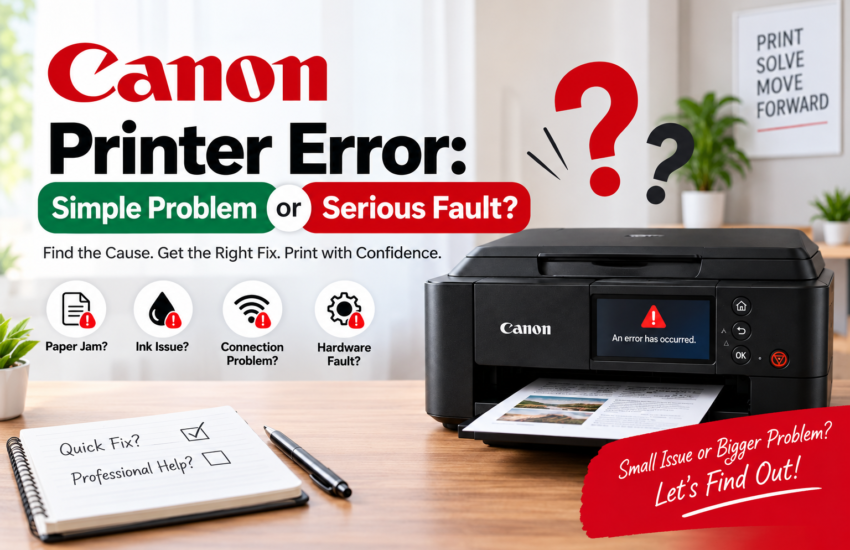
 A Canon Printer Error can appear unexpectedly—right when you need to print an important document, invoice, assignment, or photograph. Sometimes the problem is as simple as an empty paper tray or loose cable. In other cases, the error may indicate a paper-feed issue, printhead problem, cartridge fault, connectivity failure, or an internal hardware malfunction.
So, how do you know whether a Canon printer error is a simple problem you can fix yourself or a serious fault that requires professional attention?
This guide explains common Canon printer problems, their possible causes, basic troubleshooting steps, and the warning signs that may indicate a more serious issue.
What Does a Canon Printer Error Mean?
A Canon printer may display an error message or error code when it detects a condition preventing normal printing.
Depending on the printer model, the error may appear on the printer’s display, through flashing indicator lights, or in the printer software on your computer.
A printer error does not automatically mean that the machine is damaged. Many errors are caused by relatively minor issues such as:
- Paper jams
- Incorrectly installed cartridges
- Low or empty ink
- Empty paper tray
- Printer offline status
- Wi-Fi connectivity problems
- Incorrect printer settings
- Pending print jobs
- Temporary software or communication issues
However, repeated errors—especially after basic troubleshooting—can sometimes point to an internal component or hardware problem.
Common Canon Printer Errors and Their Causes
1. Paper Jam Error
Paper jams are among the most common printer problems. A sheet may become stuck inside the paper path, rollers, rear tray, or output section.
A paper jam can occur because of:
- Incorrect paper loading
- Overfilled paper tray
- Folded or damaged paper
- Unsupported paper thickness
- Dirty or worn feed rollers
- Small pieces of torn paper remaining inside the printer
If the paper can be removed safely and the printer operates normally afterward, it is usually a minor problem.
If paper jams occur repeatedly even with correctly loaded paper, the feed mechanism may need inspection.
2. Canon Printer Offline Error
You may try to print a document only to find that your computer shows the Canon printer as offline.
This can happen because of a lost Wi-Fi connection, USB communication problem, incorrect printer selection, network changes, or a temporary operating-system issue.
Check that the printer is powered on and properly connected. For a wireless printer, make sure the printer and computer are connected to the appropriate network.
Also verify that the correct printer has been selected before sending the document again.
3. Ink Cartridge Error
A Canon printer may display an error when it cannot properly recognize an installed ink cartridge.
Possible causes include:
- Cartridge installed incorrectly
- Cartridge not seated properly
- Protective material not fully removed
- Cartridge contact issue
- Empty or incompatible cartridge
- Damaged cartridge
Turn off the printer if appropriate for your model, inspect the cartridge installation, and reinstall it according to the printer’s instructions.
Avoid touching electrical contacts or other sensitive cartridge components unnecessarily.
4. Printer Not Responding
A printer that does not respond to a print command does not necessarily have a serious hardware fault.
The problem may be related to communication between the printer and computer.
Check the power supply, USB or network connection, print queue, and printer status. Restarting the printer and computer can also resolve temporary communication problems.
If the printer remains unresponsive across different devices or connections, further diagnosis may be necessary.
5. Wi-Fi and Network Connection Errors
Wireless printing is convenient, but network problems can make a perfectly functional printer appear faulty.
A connection problem can occur after:
- Changing the Wi-Fi password
- Installing a new router
- Network interruption
- Changing network settings
- Moving the printer
- Software or operating-system updates
Before assuming that the printer itself is faulty, verify the network configuration and reconnect the printer using the instructions provided for your specific Canon model.
6. Printhead-Related Problems
Print quality problems can sometimes be associated with the printhead or ink delivery system.
Common symptoms include:
- Missing colors
- Horizontal lines
- Faded printing
- Blank areas
- Uneven print quality
Using the printer’s built-in nozzle check or cleaning function may help diagnose or resolve some print-quality problems.
Avoid repeatedly running deep-cleaning cycles without reason because they can consume significant ink.
Persistent printhead-related errors may require more detailed inspection.
7. Canon Printer Error Code
Some Canon printers display specific numerical or alphanumeric error codes.
An error code can be extremely useful because it helps narrow down the possible cause of the problem. However, the meaning of a code can vary by printer model.
Therefore, avoid assuming that an error code has exactly the same meaning across every Canon printer.
The safest approach is to note:
Printer model + exact error code + when the error occurs
Then check the troubleshooting information or manual for that specific printer model.
Is Your Canon Printer Error a Simple Problem?
The issue is more likely to be minor when the printer returns to normal after basic troubleshooting.
For example, you may only need to:
- Reload the paper correctly
- Remove a paper jam
- Reinstall the ink cartridge
- Restore the Wi-Fi connection
- Clear a stuck print job
- Restart the printer
- Correct the printer settings
- Update or reinstall the appropriate printer software
Always follow instructions appropriate to your specific Canon printer model rather than forcing components or disassembling the machine.
When Could It Be a Serious Printer Fault?
You should consider professional inspection when the same error keeps returning despite appropriate troubleshooting.
Warning signs can include persistent mechanical noises, recurring paper-feed failures, repeated hardware-related error codes, burning smells, visible electrical damage, fluid leakage, or a printer that repeatedly shuts down unexpectedly.
If you notice smoke, an unusual burning smell, excessive heat, or an apparent electrical problem, stop using the printer and disconnect it from power when it is safe to do so.
Do not continue restarting a printer that shows signs of an electrical or mechanical safety issue.
Basic Canon Printer Troubleshooting Checklist
Before arranging a repair, try a few basic checks:
Step 1: Read the complete error message
Do not immediately dismiss the notification. Record the exact error code if one appears.
Step 2: Check paper and ink
Make sure paper is correctly loaded and inspect the ink or cartridge status.
Step 3: Inspect for visible paper jams
Remove jammed paper carefully according to the printer instructions.
Step 4: Check the connection
Verify USB, Wi-Fi, or network connectivity depending on your setup.
Step 5: Check the print queue
A failed or stuck print job may prevent subsequent documents from printing.
Step 6: Restart the printer
A normal restart may clear temporary software or communication errors.
Step 7: Check model-specific troubleshooting information
Search using your exact Canon printer model and error code.
If the problem remains after these checks, further diagnosis may be required.
How to Prevent Common Canon Printer Problems
Good printer maintenance can reduce avoidable errors.
Use suitable paper, load the tray correctly, keep the printer clean, avoid forcing jammed sheets through the mechanism, and follow the manufacturer’s instructions when replacing cartridges or performing maintenance.
If you use the printer infrequently, periodically checking its operation may also help identify problems before an urgent print job.
Conclusion: Canon Printer Error
A Canon Printer Error can be either a simple inconvenience or an indication of a more serious fault. Paper jams, connectivity issues, cartridge installation problems, and temporary software errors can often be resolved with basic troubleshooting.
However, recurring error codes, abnormal mechanical behaviour, electrical symptoms, or problems that remain after model-specific troubleshooting deserve closer attention.
The most important first step is to identify the exact printer model and error code. Once you know those two details, you can determine whether the problem requires a quick adjustment, software troubleshooting, maintenance, or professional repair.
FAQs: Canon Printer Error
Why is my Canon printer showing an error?
A Canon printer can show an error because of paper jams, cartridge problems, connectivity issues, incorrect settings, printhead problems, or internal hardware faults. The exact cause depends on the printer model and error message.
How do I clear an error on my Canon printer?
Start by reading the displayed error message or code. Check the paper, cartridges, printer connection, and print queue. Restart the printer if appropriate. For persistent errors, use the troubleshooting instructions for your exact printer model.
Why is my Canon printer connected but not printing?
The printer may have a stuck print queue, incorrect default-printer selection, network communication issue, software problem, or cartridge/paper-related error.
Is a Canon printer error always a hardware problem?
No. Many printer errors are caused by simple issues such as paper jams, connection failures, incorrect settings, or improperly installed cartridges.
Why does my Canon printer error keep coming back?
A recurring error can indicate that the original problem has not been completely resolved. Repeated paper jams, cartridge recognition failures, or hardware-related codes may require more detailed inspection.
Should I reset my Canon printer when an error appears?
Not necessarily. First identify the actual error. A restart may resolve some temporary issues, but repeatedly resetting the printer without understanding the cause can hide rather than solve the underlying problem.