 Posted by
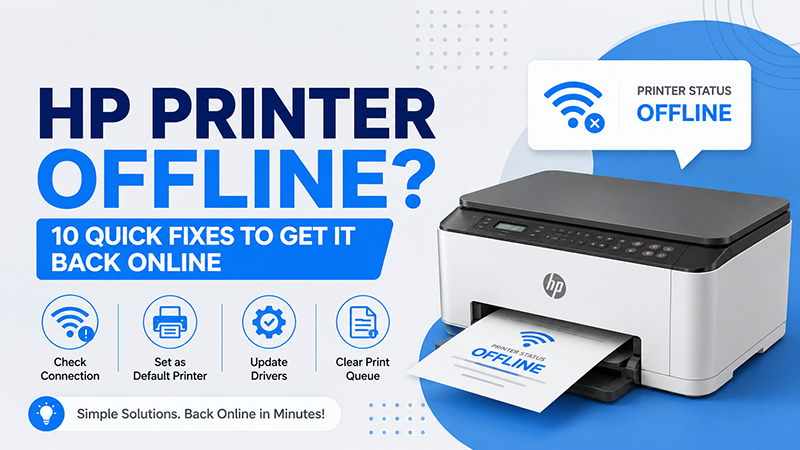
 Seeing an HP Printer Offline message when you need to print something can be frustrating. Even when your printer is powered on and connected to Wi-Fi, your computer may still show it as offline.
The good news is that most HP printer offline problems can be fixed with a few simple troubleshooting steps. In this guide, we’ll explain the common reasons behind the issue and share 10 quick fixes to get your HP printer back online.
Why Is My HP Printer Showing Offline?
Before applying a fix, it helps to understand what may be causing the problem. An HP printer can appear offline because of:
- Unstable Wi-Fi connection
- Printer and computer connected to different networks
- Incorrect printer settings
- Outdated or corrupted printer drivers
- Print jobs stuck in the queue
- Printer set to “Use Printer Offline”
- Print Spooler service problems
- Temporary communication errors
- Router connectivity issues
- Outdated printer software or firmware
If your HP printer is showing offline, try the following solutions one by one.
1. Check the Printer Power and Connection
Start with the basics. Make sure your HP printer is switched on and does not display any error message.
Check the printer’s:
- Power connection
- USB cable, if applicable
- Wi-Fi indicator
- Paper tray
- Ink or toner status
- Printer display for error messages
If the printer is connected through USB, unplug the cable and reconnect it securely. For wireless printers, confirm that Wi-Fi is enabled.
2. Restart Your HP Printer and Computer
A simple restart can resolve temporary communication problems.
Turn off your printer and computer. Wait for about 30 seconds, then:
- Turn on the printer.
- Wait until it becomes ready.
- Restart your computer.
- Try printing again.
This is one of the easiest HP printer offline fixes and should be attempted before changing advanced settings.
3. Make Sure the Printer and Computer Use the Same Wi-Fi
If you’re using a wireless HP printer, your printer and computer generally need to communicate through the same network.
Check the Wi-Fi network shown on your printer. Then check the Wi-Fi connection on your computer.
If they are connected to different networks, reconnect them to the same network and try printing again.
This step is especially important if you recently changed your router, Wi-Fi password, or internet service provider.
4. Set Your HP Printer as the Default Printer
Windows may sometimes select another printer as the default device.
To check your default printer:
- Open Settings on Windows.
- Select Bluetooth & devices.
- Choose Printers & scanners.
- Select your HP printer.
- Click Set as default, if available.
- Try printing a test document.
Setting the correct printer as the default can resolve an HP printer not printing issue caused by incorrect printer selection.
5. Turn Off “Use Printer Offline”
Sometimes Windows manually switches a printer into offline mode.
To check this setting:
- Open Control Panel.
- Go to Devices and Printers.
- Right-click your HP printer.
- Select See what’s printing.
- Click the Printer menu.
- Make sure Use Printer Offline is not selected.
If it is enabled, click it to disable offline mode and try printing again.
6. Clear Stuck Print Jobs
A document stuck in the print queue can prevent new documents from printing.
Open your HP printer’s print queue and cancel any pending or stuck documents.
Then:
- Close the print queue.
- Restart the printer.
- Send a new print job.
If the queue repeatedly becomes stuck, restarting the Windows Print Spooler service may help.
7. Restart the Print Spooler Service
The Print Spooler is a Windows service responsible for managing print jobs. If it stops responding, your printer may appear offline or fail to print.
To restart it:
- Press Windows + R.
- Type
services.msc. - Press Enter.
- Find Print Spooler.
- Right-click it.
- Select Restart.
- Try printing again.
This can be particularly useful when your printer is connected but Windows cannot communicate correctly with it.
8. Update or Reinstall the HP Printer Driver
An outdated or corrupted printer driver can cause communication problems between your computer and printer.
If your HP printer keeps going offline, check whether the appropriate printer driver is installed and up to date.
You can remove the existing printer from Windows and add it again. When necessary, install the latest compatible driver and software provided for your specific HP printer model.
After reinstalling the printer, restart your computer and test the connection.
9. Restart Your Wi-Fi Router
If your HP printer frequently disconnects from Wi-Fi, the problem may be related to your network rather than the printer itself.
Restart your router and wait for the Wi-Fi connection to become stable. Then reconnect your HP printer and computer to the network.
Also check whether other devices connected to the same Wi-Fi network are experiencing connection problems.
If multiple devices are disconnecting, your network may require additional troubleshooting.
10. Remove and Add the HP Printer Again
If none of the previous solutions work, removing and reconnecting the printer can refresh its connection with Windows.
Go to:
Settings → Bluetooth & devices → Printers & scanners
Select your HP printer and remove it. Then choose Add device and follow the on-screen instructions to add the printer again.
This can resolve incorrect printer configuration and communication issues.
HP Printer Offline but Connected to Wi-Fi: What Should You Do?
If your HP printer is offline but connected to Wi-Fi, first check whether the printer and computer are connected to the same network.
Then restart the printer, computer, and router. Check the printer’s network status and remove any stuck print jobs.
If the problem continues, removing and adding the printer again or updating its driver may resolve the issue.
How to Prevent HP Printer Offline Problems
Once your printer is working again, a few simple practices can help reduce future connectivity problems:
- Keep your printer software and drivers updated.
- Keep the printer within a reasonable range of the Wi-Fi router.
- Avoid frequently changing Wi-Fi network settings.
- Restart the printer periodically.
- Remove old or stuck print jobs.
- Keep Windows and other device software updated.
- Check your network connection if the printer disconnects repeatedly.
When Should You Contact Technical Support?
If your HP printer remains offline after trying these troubleshooting methods, the problem may involve hardware, network configuration, or a more complex software issue.
Consider professional support if:
- The printer cannot connect to Wi-Fi at all.
- The printer repeatedly disconnects.
- The printer displays a hardware error.
- The printer cannot be detected by any device.
- Reinstalling the printer does not solve the problem.
- The issue continues across different computers or networks.
Conclusion
An HP Printer Offline message does not always mean there is a serious problem with your printer. In many cases, the issue can be resolved by checking the network connection, restarting the printer and computer, clearing print jobs, disabling offline mode, or reinstalling the printer.
If your HP printer is showing offline, start with the simplest solutions and work through the fixes in this guide. Keeping your printer drivers, software, and network connection up to date can also help prevent the problem from returning.
FAQs About HP Printer Offline
1. Why is my HP printer showing offline?
An HP printer may show offline because of Wi-Fi connectivity problems, incorrect printer settings, stuck print jobs, outdated drivers, or communication issues between the printer and computer.
2. How do I fix my HP printer offline?
Restart the printer and computer, check the Wi-Fi connection, disable “Use Printer Offline,” clear the print queue, and make sure the correct printer is selected as the default device.
3. Why is my HP printer offline but connected to Wi-Fi?
Your printer may be connected to Wi-Fi but unable to communicate properly with your computer. Check that both devices are using the same network and try restarting the printer, computer, and router.
4. Why does my HP printer keep going offline?
Frequent offline problems can be caused by unstable Wi-Fi, router issues, outdated drivers, incorrect network settings, or printer software problems.
5. How can I prevent my HP printer from going offline?
Keep the printer driver and software updated, maintain a stable Wi-Fi connection, avoid unnecessary network changes, and restart the printer or router when connectivity problems occur.