 Posted by
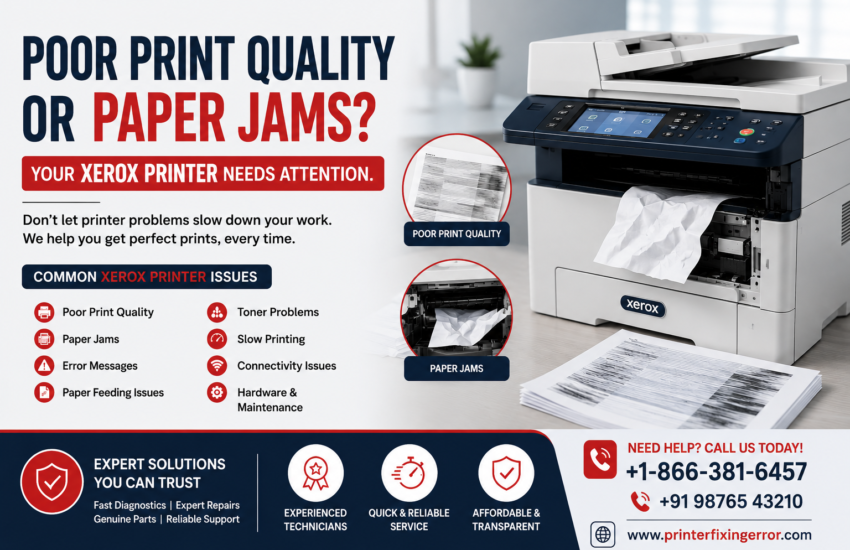
 A printer is an essential part of daily business operations. When a Xerox printer starts producing poor-quality prints, frequent paper jams, error messages, or inconsistent output, even simple printing tasks can become frustrating and time-consuming.
These problems may be caused by anything from incorrect paper settings and low-quality consumables to dirty components or mechanical issues. Identifying the actual cause early can help prevent downtime and unnecessary repair costs.
In this blog, we’ll look at the most common Xerox printer problems, their possible causes, and practical ways to troubleshoot them.
Common Xerox Printer Problems
Some of the most frequently reported Xerox printer issues include:
- Poor or faded print quality
- Paper jams
- Smudged or blurred prints
- Lines or spots appearing on pages
- Printer not feeding paper properly
- Slow printing
- Error messages
- Connectivity problems
- Toner-related issues
- Frequent paper misfeeds
Understanding the symptoms can make troubleshooting much easier.
1. Poor Print Quality
Poor print quality is one of the most common printer complaints. Documents may appear faded, uneven, blurred, or contain unwanted lines and spots.
Possible Causes
- Low toner level
- Incorrect print settings
- Dirty print components
- Poor-quality or unsuitable paper
- Worn-out imaging components
- Incorrect colour settings
- Toner distribution problems
What You Can Check
First, check the toner level and make sure the correct paper type has been selected in the printer settings. Running the printer’s built-in cleaning or calibration procedure may also improve output quality.
If the problem continues, internal components may require professional inspection.
2. Frequent Paper Jams
Paper jams can interrupt production and may become particularly frustrating when they happen repeatedly.
Common Causes of Paper Jams
- Incorrect paper size
- Overloaded paper tray
- Damaged or curled paper
- Incorrect paper guides
- Dust or debris inside the paper path
- Worn rollers
- Mechanical component problems
Always remove jammed paper carefully according to the printer’s instructions. Pulling paper aggressively can damage internal components or leave small pieces inside the machine.
3. Smudged or Blurred Prints
If printed pages have smudges, blurred text, or toner that does not appear properly fixed to the paper, the issue may be related to the toner system or fuser assembly.
Using the correct paper type and checking printer settings should be the first steps. If the problem remains, professional servicing may be required.
4. Lines, Spots, or Repeated Marks on Prints
Vertical lines, dark spots, or repeated marks can indicate contamination or wear in components responsible for transferring the image onto the page.
Cleaning accessible components according to the manufacturer’s recommendations can sometimes solve the problem. However, persistent marks may indicate that a consumable or internal component needs replacement.
5. Xerox Printer Not Feeding Paper
Sometimes the printer may fail to pick up paper even though the tray is loaded.
Possible reasons include:
- Paper loaded incorrectly
- Paper guides positioned incorrectly
- Damp or unsuitable paper
- Worn pickup rollers
- Foreign objects in the paper path
- Mechanical wear
Try replacing the paper with a fresh, suitable stack and ensure that the guides are correctly positioned. If the printer continues to misfeed, the pickup mechanism should be inspected.
6. Error Messages and Printer Alerts
Modern Xerox printers use error codes and alerts to identify technical problems. These may relate to:
- Toner
- Paper
- Fuser temperature
- Imaging components
- Paper path
- Hardware
- Network connectivity
Instead of repeatedly restarting the printer, note the exact error message or code. This information can help a technician identify the problem more efficiently.
7. When Should You Call a Printer Technician?
Basic troubleshooting can resolve many minor problems. However, professional assistance is recommended when:
- Paper jams happen repeatedly
- Print quality continues to deteriorate
- The printer makes unusual noises
- Error codes keep returning
- Internal components appear damaged
- The printer stops working completely
- Repairs require opening internal assemblies
Continuing to operate a printer with a serious mechanical problem can sometimes lead to further damage.
How Regular Maintenance Can Prevent Printer Problems
Preventive maintenance can significantly reduce unexpected printer downtime.
A proper maintenance routine should include:
Regular Cleaning:
Keep accessible printer components and paper paths clean to reduce dust and debris.
Correct Paper Selection:
Use paper compatible with the printer and store it in a dry environment.
Consumable Monitoring:
Monitor toner and other consumables before they become completely depleted.
Paper Tray Management:
Avoid overloading trays and ensure that paper guides are correctly positioned.
Professional Inspection:
Periodic servicing can help identify worn components before they cause major failures.
Why Professional Xerox Printer Service Matters
A printer may look like a simple office machine, but modern multifunction printers contain multiple electronic and mechanical systems working together.
Professional technicians can identify whether an issue is related to consumables, settings, mechanical components, electrical systems, or software.
Instead of repeatedly dealing with the same paper jams or print-quality problems, professional troubleshooting can address the underlying cause.
Final Thoughts
Poor print quality or frequent paper jams shouldn’t become a normal part of your workday.
From faded prints and toner issues to paper jams and recurring error messages, identifying the root cause is the first step toward reliable printer performance.
Regular maintenance, correct operating practices, and timely professional servicing can help extend the life of your Xerox printer, reduce downtime, and keep your business printing smoothly.
Facing recurring Xerox printer problems? Get your printer professionally inspected before a minor issue turns into costly downtime.